AI Greenbox Your scenes, no green screen
AI separates the guest from the background and places them in the scene they choose. No green screen is required; a plain, well-lit background helps the model separate the guest cleanly.

How does the guest use it?
- 1
Capture (scene choice can come first)
- 2
"Choose your scene" screen
- 3
Person placed into the scene
What can you set in Studio?
- Scenes
- Up to 30 per event
- Placement
- Position and size of the person for each scene
- Model
- Choice of background-removal model
What does the guest get?
- Output
- PNG, 1200×1800
- Sharing
- Guest page by QR, download, WhatsApp/Facebook/X link, email with the image attached
- 4×6 in (10×15 cm), 300 dpi
Shared settings, where supported
- Camera-based experiences
- Front/back camera, rotation, mirroring, 1–4× zoom; USB (UVC) camera on iPad
- Flow
- Optional guest form; camera-based experiences also support a 0–10 s countdown and retakes
- Brand
- Frame, colors, screen background and screen texts
- Kiosk
- Exit locked by an operator PIN, screen stays awake
Questions about AI Greenbox
Do I need a green screen?
No. The person is separated by a background-removal model. A plain, well-lit background improves the result.
More from this family
-
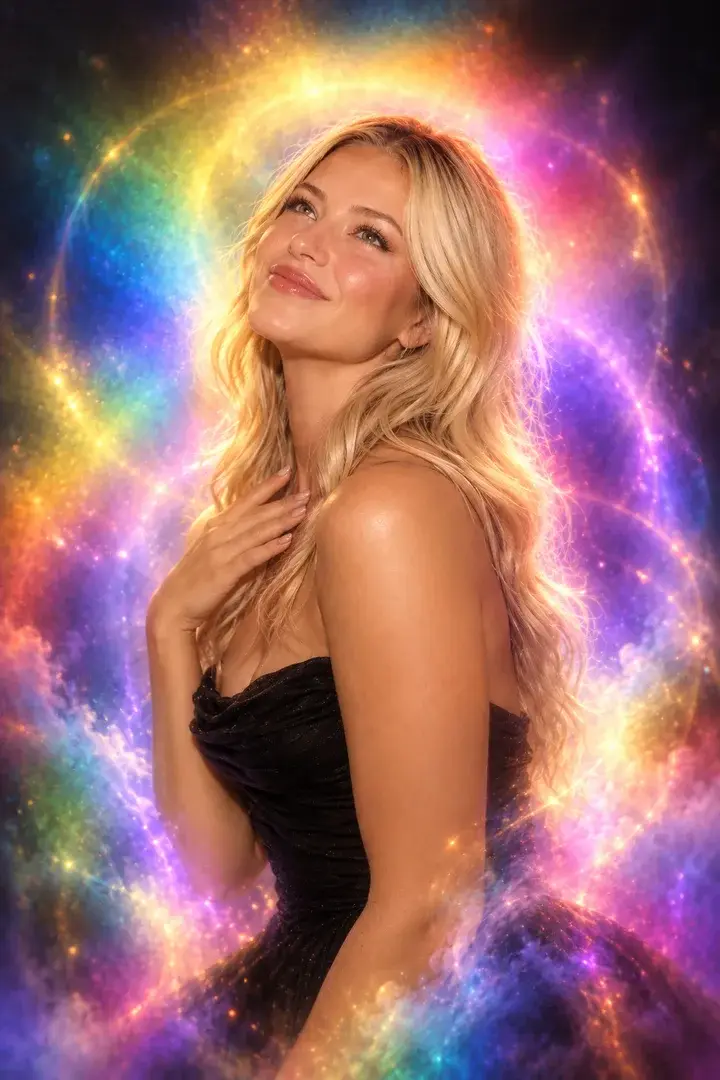
Aura Photo
Color-field aura portraits with the look of analog film.
-
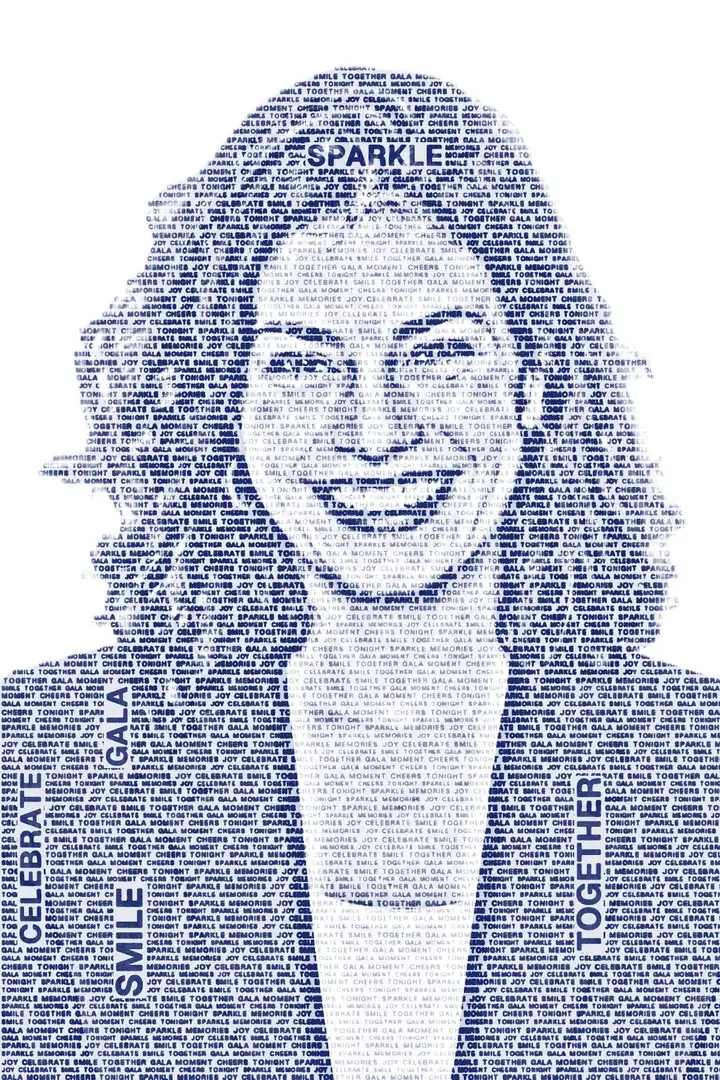
Wordportre
The guest's portrait drawn from words you choose, on a transparent background.
-
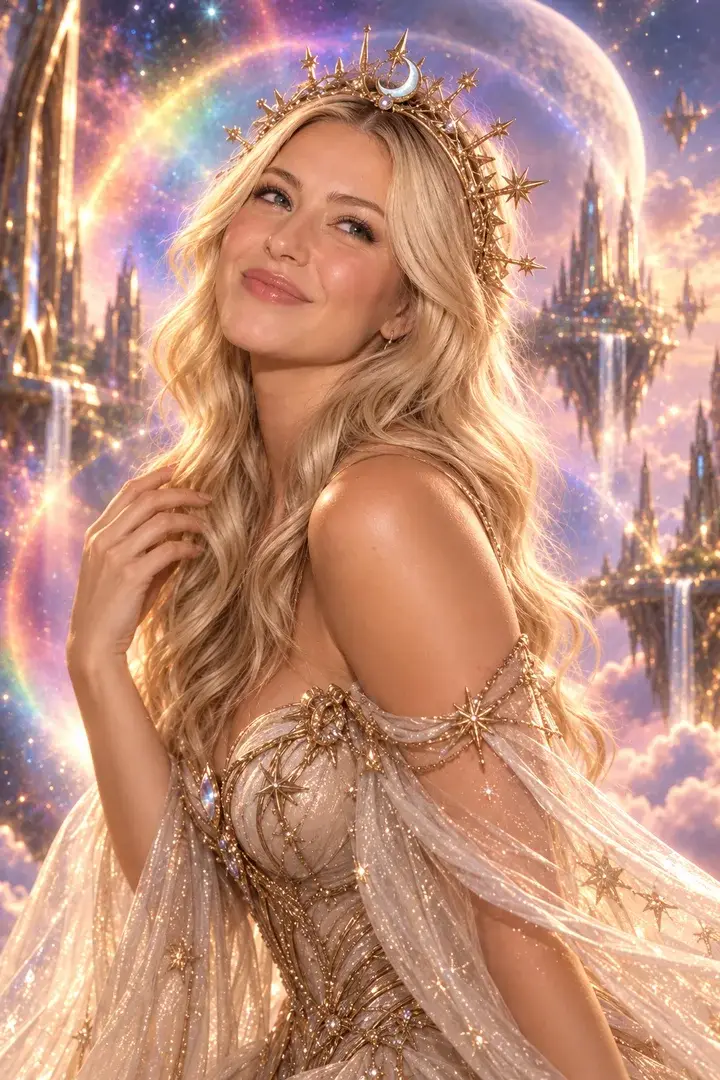
AI Photo
Guests become the characters you set for the event — up to 50 per event, one or two faces.
-
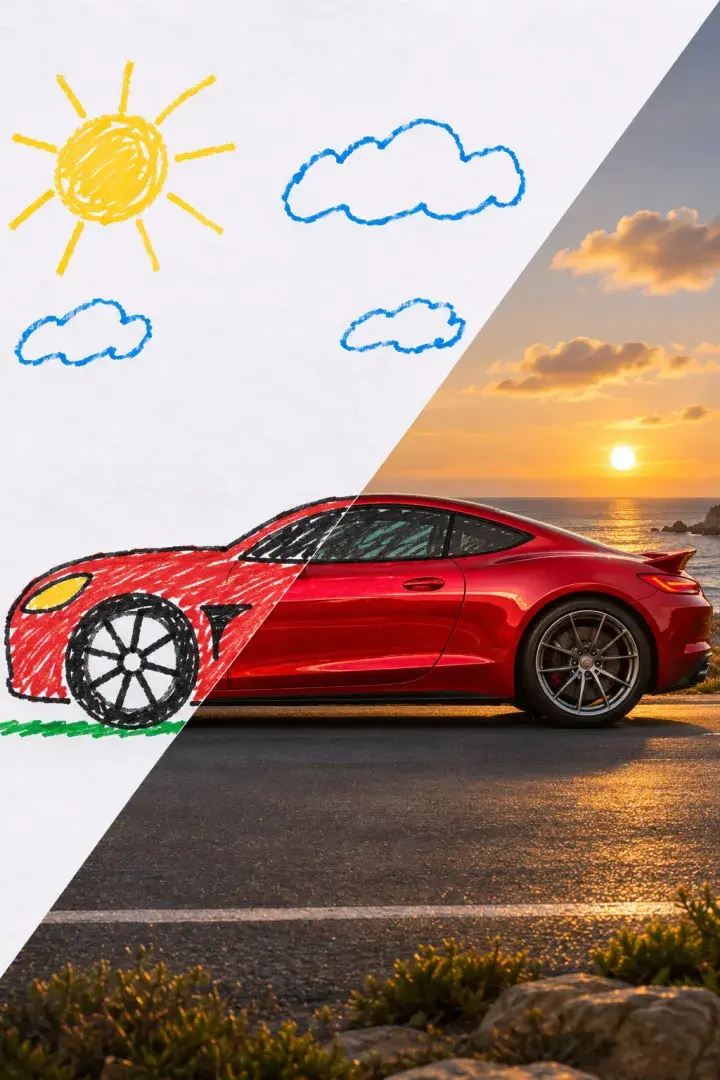
AI Sketch to Image
A guest's quick sketch becomes a detailed image.