Remote control Start the capture from your phone
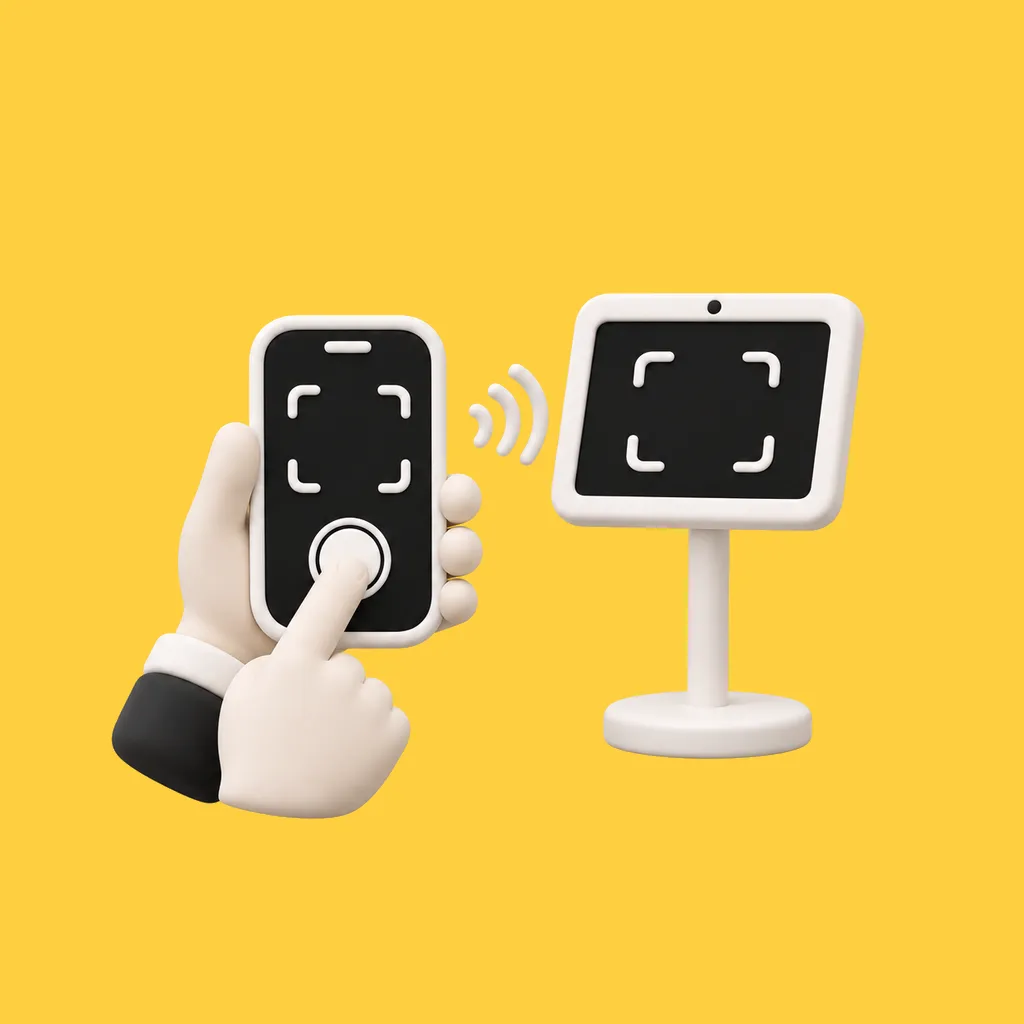
Pair a phone with the kiosk and start the shot from it.
How it works
Pair
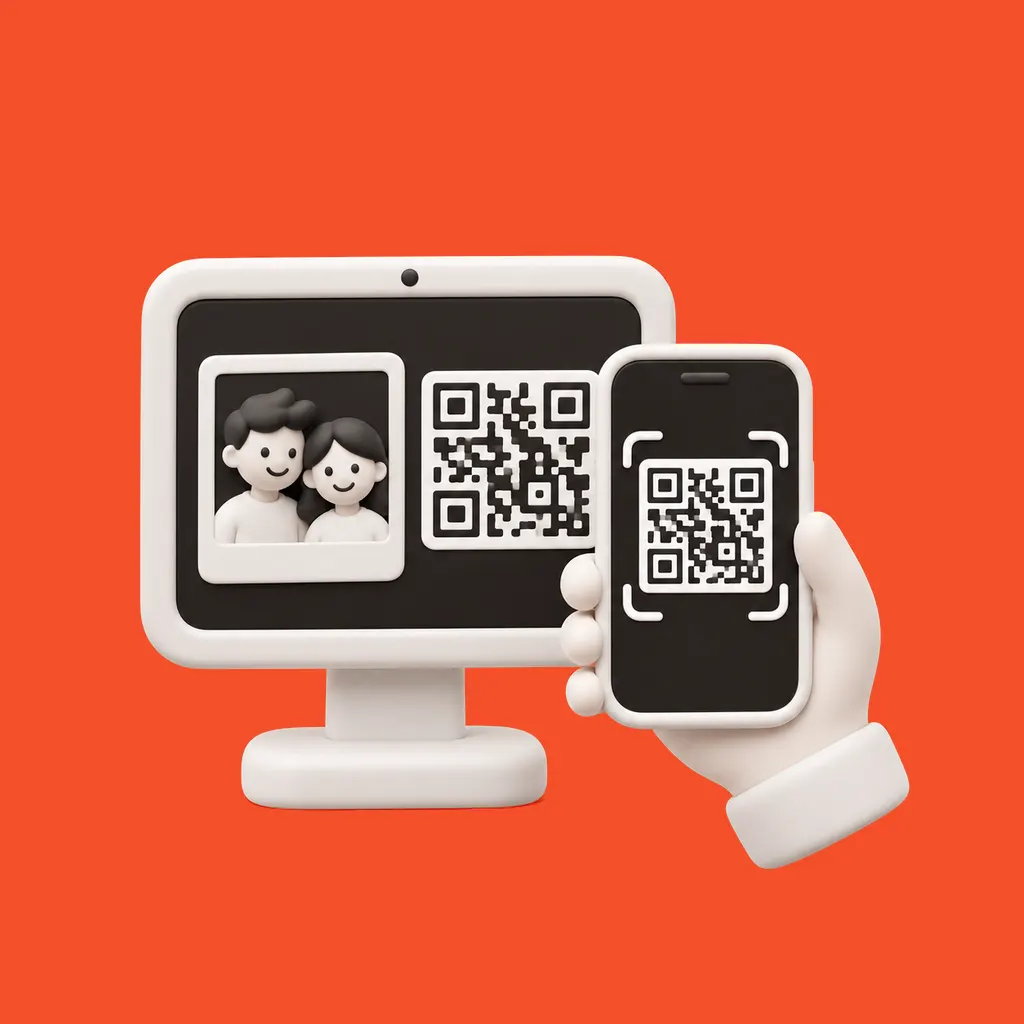
Scan the QR on the kiosk or enter its six-character code on the phone.
Start
"Start capture" runs the normal countdown and shot; video experiences show "Start recording".
See the result
The result appears on the phone too; reset for the next guest from there.
Details
- Experiences
- All twelve; in AI Sketch to Image it starts the conversion of the guest's drawing
- Pairing
- QR or a six-character code, valid for 10 minutes
- Session
- Up to 12 hours, one phone per kiosk
- Stays on the kiosk
- Guest form, character/scene choice and drawing
Good to know
- Remote control needs a connection on both devices.
- Video Booth recordings run for their fixed length; they can't be stopped early.
Questions
Does the phone need the Eventwink app?
No. The remote opens in the phone's browser from the QR or code.
Features
-
Offline mode
In the iOS and Android apps, shots queue offline and are processed when the connection returns.
Read more · Offline mode → -
Printing
4×6 prints from any printer on a Windows PC; the kiosk can be on another network.
Read more · Printing → -
QR and email sharing
Every result gets its own guest page. Guests scan the QR on the kiosk, download the photo, GIF or video, and share it — no app, no account.
Read more · QR and email sharing →